
Better Startup
Make boot-up feel fast.
Free No license, no account, no paywall.
Windows dumps every startup app at once. CPU and disk peg, the desktop freezes, and you wait. Better Startup launches apps in priority order and only starts the next one when the system has headroom. You get a usable machine sooner instead of sitting through a bottleneck.
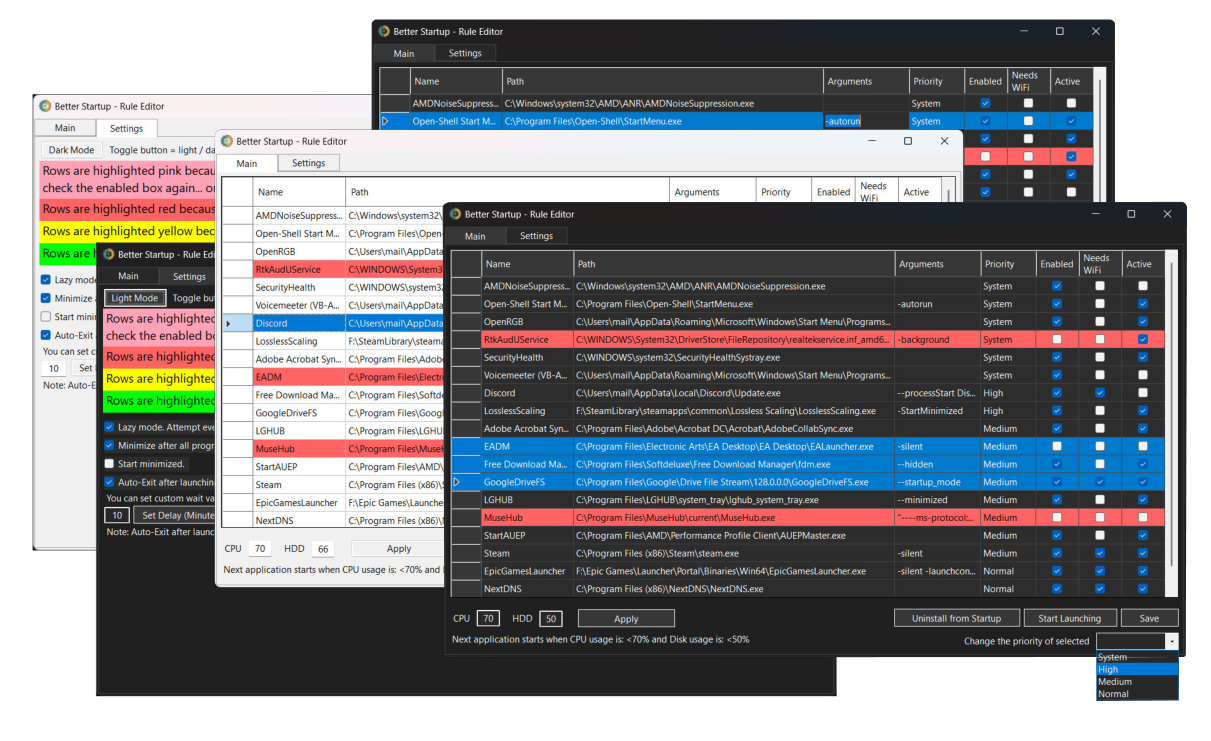
- Free: forever — grab the zip and go
- Priorities: System → High → Medium → Normal
- Gates: next app waits for CPU / disk headroom
- Needs Wi‑Fi: hold online apps until connected
- System tray: runs in the tray; start minimized or minimize after launch
Everything you need to own startup
Rule list, system tray, install/uninstall, live status.
- Priority rule editor
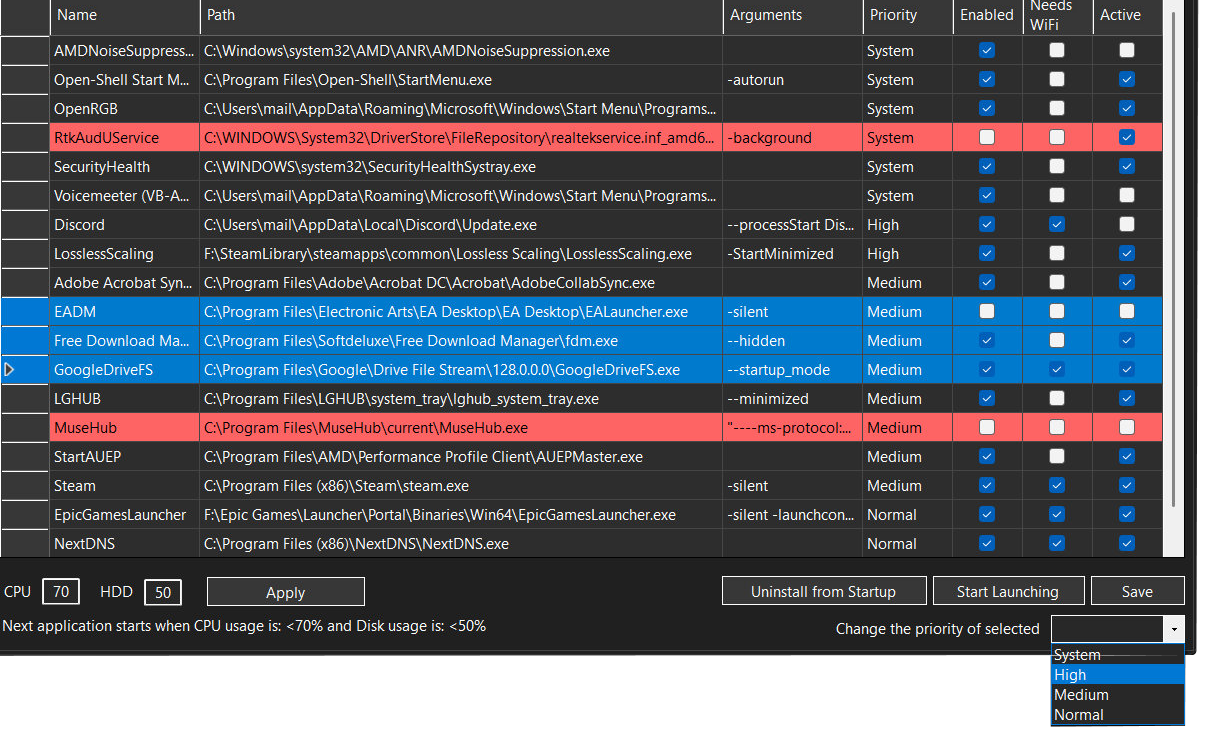
- Select one or more rows, set priority System → High → Medium → Normal. The list reorders automatically when priority changes.
- Resource-aware launching
- Set CPU and disk ceilings. The next app only starts once both are under the limit, so the machine stays responsive while the rest of the queue fills in.
- Needs Wi‑Fi
- Per-rule flag. Marked apps wait for a network connection before launch (chat, cloud sync, etc.).
- Lazy mode
- Some programs reinsert into Windows startup. Lazy mode takes control back on each run and highlights those rows (pink) so you can keep them managed.
- Install / uninstall
-
Install registers Better Startup as the boot entry and backs up existing shortcuts
under
Data\StartupBackup. Uninstall restores the previous setup. - System tray
- Lives in the notification area while it works. Show/hide the window, start launching, skip delays, or exit from the tray menu. Optional start minimized, or minimize after all programs have launched.
- Live status
- Active column tracks running processes. Color rows for next / launched / disabled.
- Discovery
-
On first run it scans the registry and Startup folder, assigns default priorities,
and saves everything as JSON in the
Datafolder. - Theme
- Light / dark UI with immersive title bar on Windows. Follows system preference on first launch.
Usage
- Open the app. If there are no rules yet, it scans the registry Run keys and Startup folder.
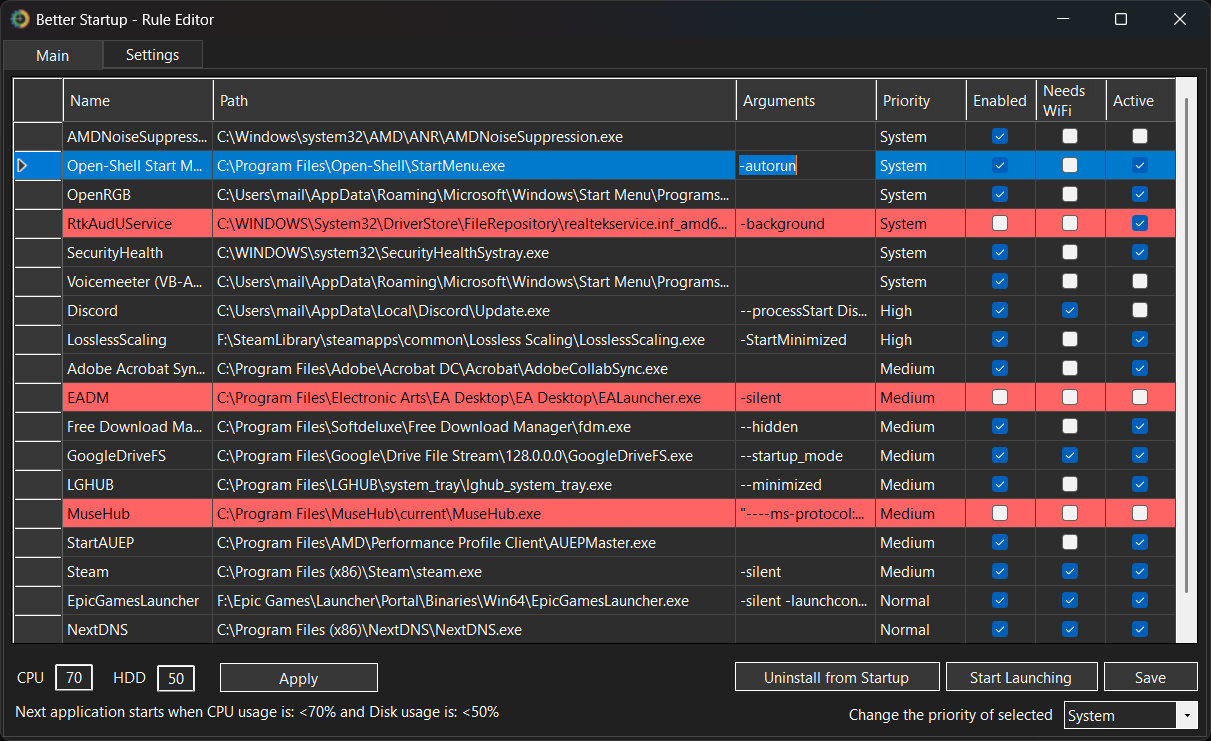
- Edit the grid. Enable/disable, set priority, arguments, Needs Wi‑Fi. Right-click to add or delete.
- Set thresholds. CPU / HDD fields + Apply. Label shows the current gate values.
-
Save.
Writes
StartupRules.jsonand settings. - Install to Startup. Becomes the single orchestrator; originals backed up.
- Boot (or Start Launching). Rules run by priority; waits between apps for CPU/disk (and Wi‑Fi when flagged).
Screenshots
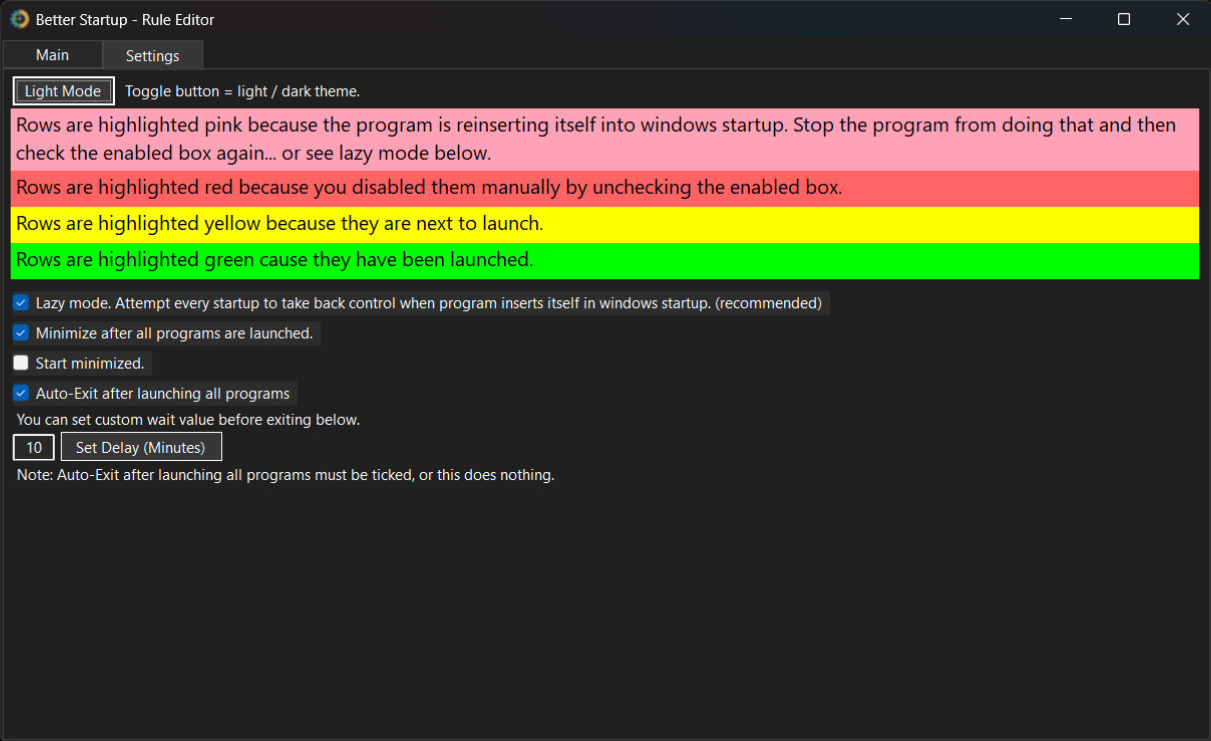
Main grid, priority edit, and settings.
Row colors
- Pink — app reinserted into Windows startup
- Red — disabled (Enabled unchecked)
- Yellow — next to launch
- Green — launched this session
Settings
| Option | What it does |
|---|---|
| Light / Dark Mode | Toggles the UI theme. |
| Lazy mode | Reclaim control when programs reinsert into Windows startup (recommended). |
| Minimize after all programs are launched | After the sequence finishes, drop to the system tray. |
| Start minimized | On autorun / boot, open straight into the system tray (no window). |
| Auto-Exit | Exit after all programs launch, after an optional delay (minutes). |
Download
Free. No registration. No trial.
You get a .zip — not an installer. Extract it, put the contents in their own folder
(drag-and-drop into something like C:\Tools\BetterStartup), then run
BetterStartup.exe.
- Download BetterStartup.zip
- Extract the archive
- Move the extracted files into a dedicated folder
- Run BetterStartup.exe
Portable: rules and settings live next to the exe under Data\
(StartupRules.json,
Settings.json, backup folder).